Extracting Project Online Task Data with the ProjectServer API
Before you can extract local custom field data from Project Online tasks, you need to understand what the ProjectServer API actually returns. Spoiler: it's a lot, it's opaque, and it's not pretty.
Introduction: This is How Project Server Returns Task Data (Part 2 of 3)
In my last article, Accessing the ProjectServer API with Power Query, we learned about how to get project data using Power Query in Excel or Power BI. This article explains in more detail how task data is returned from the ProjectServer API. We need to understand this before we can move on to using Power Query to extract custom field data from tasks to use in our reports, which will be covered in the final article Extracting Local Task Custom Fields from Project Server with Power Query.
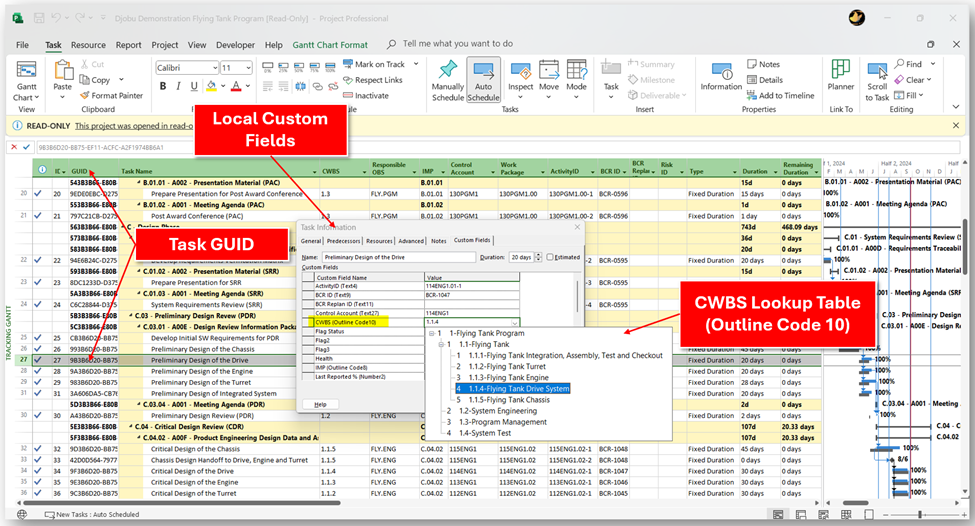
Our example today will use Task 27 - Preliminary Design of the Drive. This task has a GUID, which is a standard field we will need to query the task from Project Online. It also has several important custom fields, including the Contract Work Breakdown Structure (CWBS) stored in Outline Code 10. The CWBS field is critical to our example for two main reasons:
- A WBS is an essential structure that is tailored for every project, so it is not a good candidate for using Enterprise Custom Fields.
- The WBS consists of hierarchical data that is used both to provide grouped views of our schedule and to integrate with other systems, so we should be using a lookup table for the values.
If we were able to use an Enterprise Custom Field, then we could easily query the data using the ProjectData API as described in Beginner’s Guide: Extracting Project Online Data into Power BI & Excel with Power Query. Unfortunately for us, this is not an option because the ProjectData API does not return any local custom field data! To get all the local custom field data, we’re going to have to query the ProjectServer API, and expand the Custom Field information to get everything we need.
How the API Returns Task Data First, let’s recap how the API returns data from our Project query:
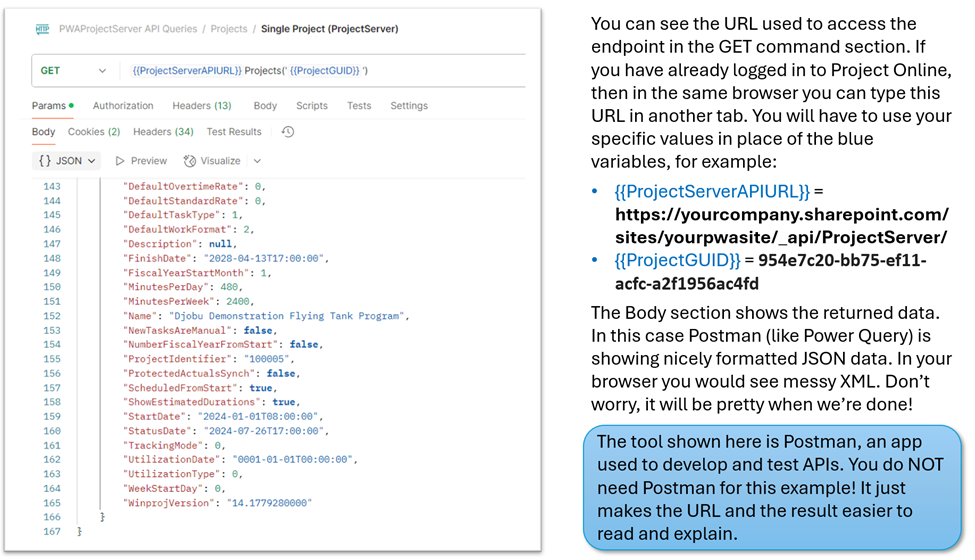
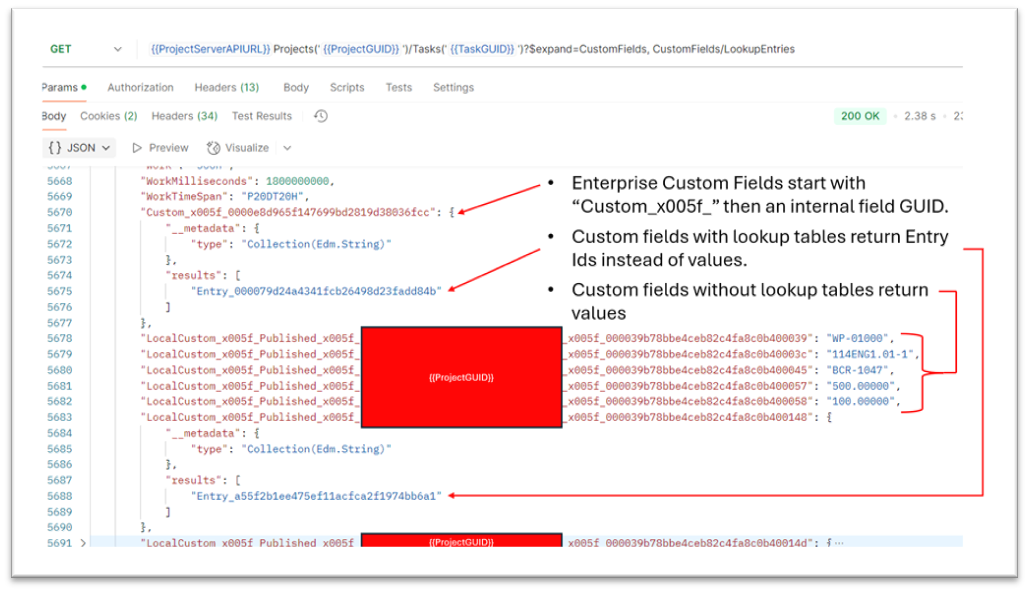
To get specific task information, we need to navigate to the Task endpoint, and expand the CustomFields and LookupEntries branches like this:

In English, we are telling ProjectServer to go to our PWA site, then navigate to our target project, find the specific task we have identified, and return all of its standard fields. We then told it to also go get all the custom fields as well as all the lookup tables and table entries stored in the project. It turns out that there is a lot of data!
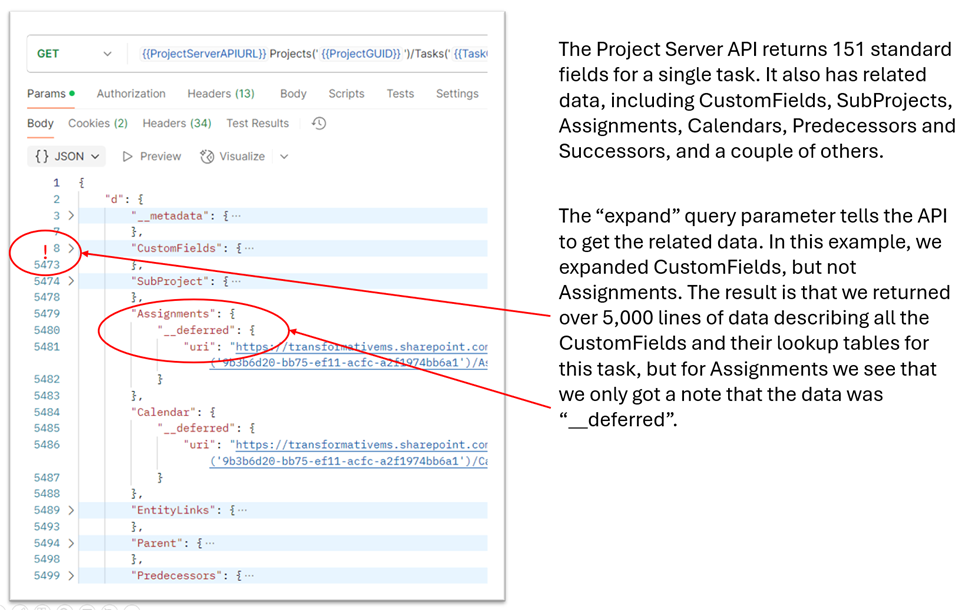
The image above only shows most of the related data. Let’s scroll down and look at some of the actual task fields:
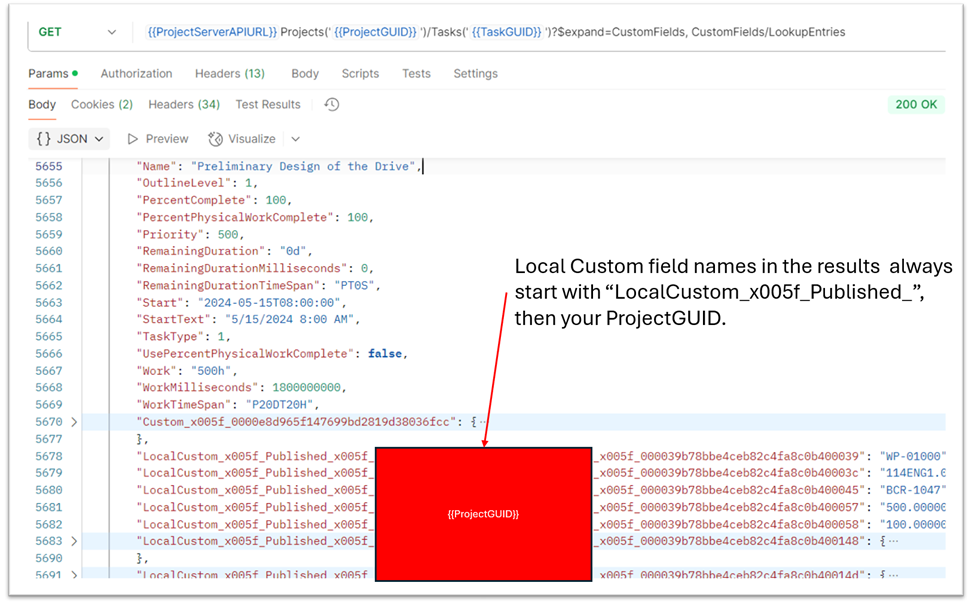
The standard fields have names we can recognize. The custom fields, however, are using what Project calls Internal Names. Even more confusing, if the custom field is using a lookup table, then Project returns an EntryID for the lookup table entry value:
By now you should have realized that Microsoft is not a force for good in this world. Do not be dismayed! Let’s go see how to extract our valuable data from the riddle wrapped inside an enigma that is the ProjectServer API task endpoint result set.
Finding Custom Field Names
The total number of JSON lines returned for this one task in this example is 5724. Of those, 151 are for the standard data fields, and a whopping 5466 are for the Custom Field names and lookup table entry values! This is because when you expand a task, Project returns every related custom field and every lookup table entry for those custom fields. For a simple example, if you search for the custom field id at the end of the internal name, you can find that field in the Custom Fields table (which starts at line 8 and goes to line 5473) associated with the task:
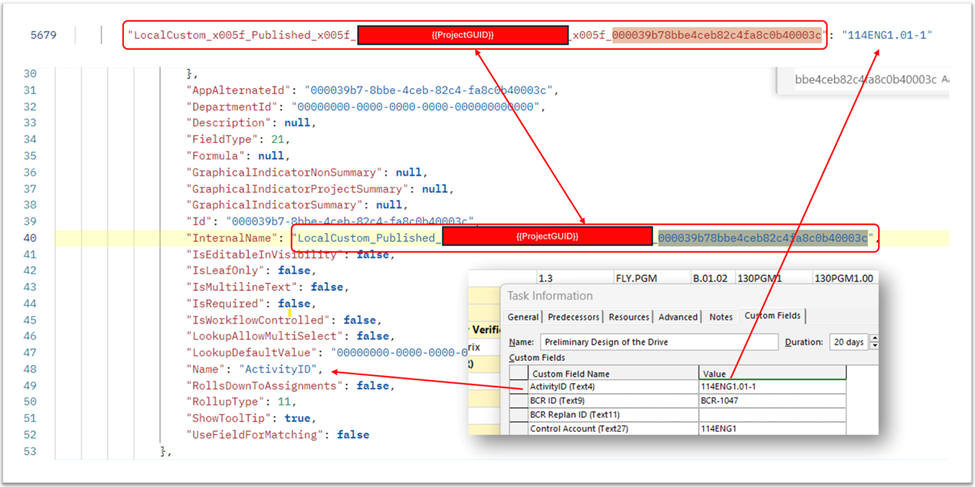
Note the line numbers on the left side. The task custom field and its value is found at line 5679, but to get the human readable field name you need to go all the way back to line 48 to see that it is “ActivityID”. You can confirm this by looking in Project Desktop to see that ActivityID, local custom field Text4, does in fact have a value of “114ENG.01-1”.
How to Decipher Local Custom Field Names
When you look up a local custom field (e.g., “Text3,” “Number2,” etc.) through the ProjectServer API, the field is referenced by a 16‐byte (128‐bit) code. Despite appearing complex, the last 8 characters of that code actually represent the integer identifier (pjField) for the custom field. Specifically, those 8 hex digits—when converted to decimal—match the field’s pjField enumeration in Microsoft Project.
For example, if you see a code like 000039b78bbe4ceb82c4fa8c0b400039, the final part (0b400039) corresponds to the decimal value 188743737, which is pjTaskText3. Conversely, if you know the pjField value you want (say 188743768 for pjTaskNumber2), converting that to hex (0x0B400058) and appending it to the standard prefix yields the full code (000039b78bbe4ceb82c4fa8c0b400058).
This makes it straightforward to move between the integer IDs in the VBA enumerations and the long codes you see in the ProjectServer API, once you know how to parse or construct that final 8‐character segment. For the full list of pjField enumerations see the Project Object Model pjField Reference.
Finding Custom Field Lookup Table Entry Values
Bringing things back to the CWBS field, we can look up the pjField id for OultineCode10 and see that it is 188744114. Converting that to hex and combining it with the standard prefix gives 000039b78bbe4ceb82c4fa8c0b4001b2, which as we can see when we search in our result set is the correct field for CWBS:
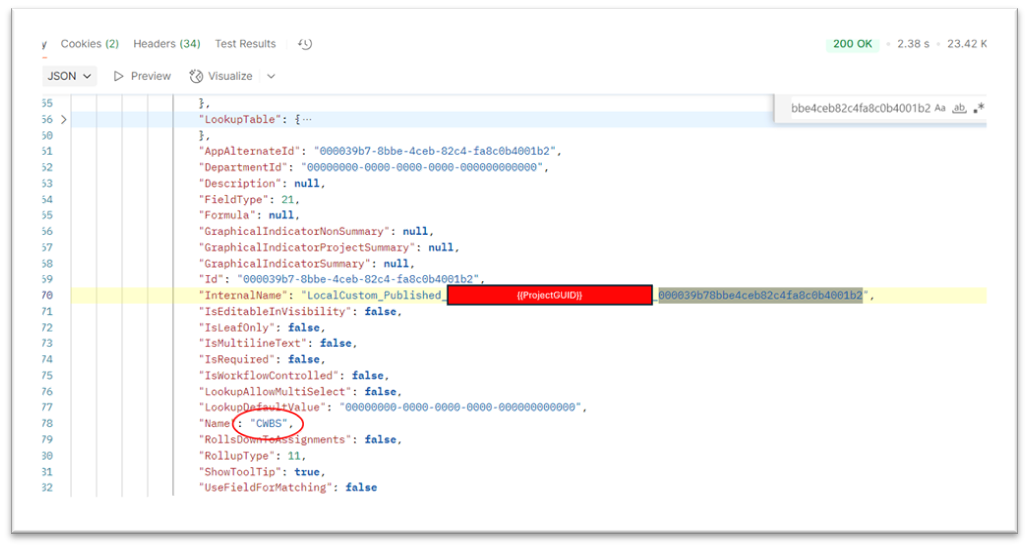
Looking up that field in our result set we can also see that its value is based on an entry in a lookup table:
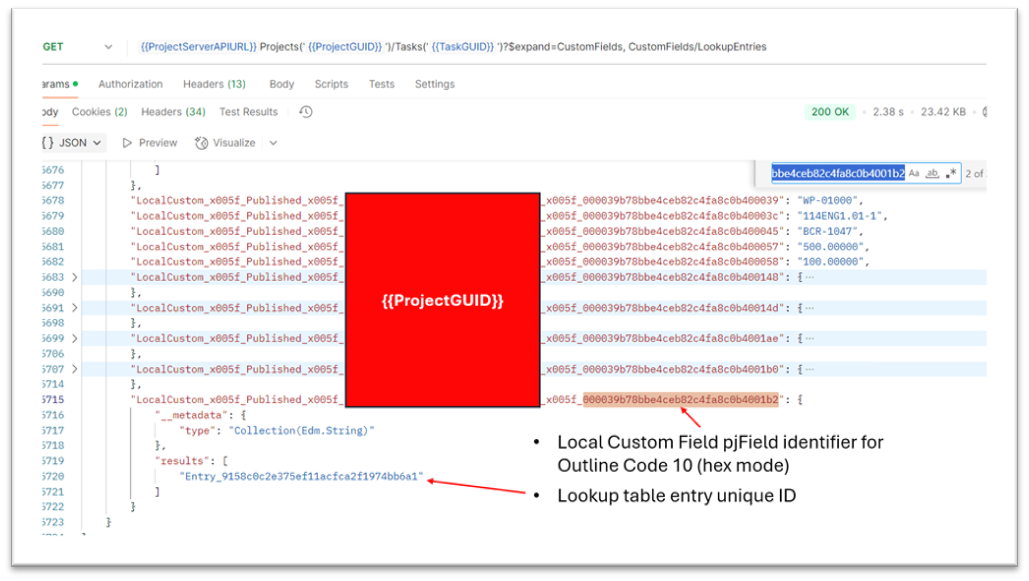
Finally, we can search for that entry within our result set to get the human readable value:
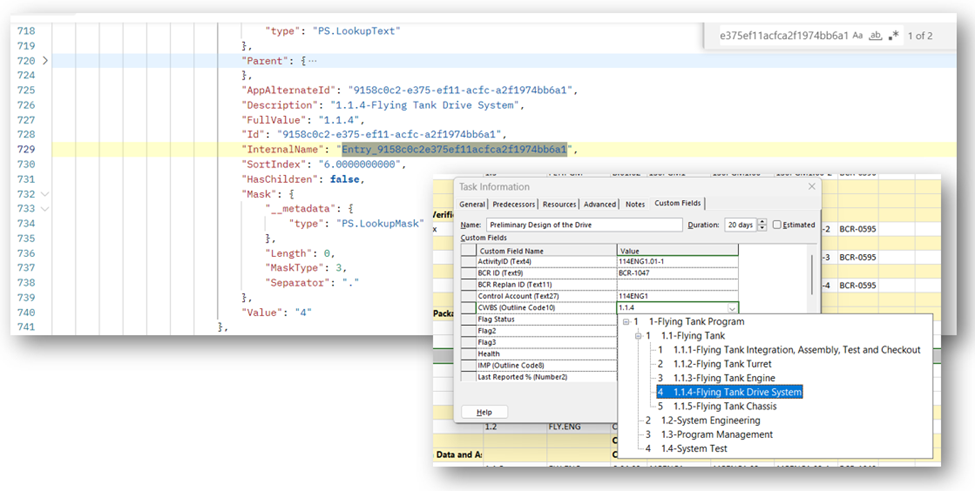
Confirm this is correct by looking at the actual custom field value in Project Desktop.
Conclusion: Ick. Just Ick.
So now we understand what the ProjectServer API is giving us when we ask it for task information. And let’s face it, the results are not pretty:
- There are lot of standard fields we don’t care about.
- The API only returns custom fields if they exist for that task, so there is no way of knowing how many fields will be returned from one task to the next.
- Both Enterprise and Local Custom Fields are referenced using internal names that are not understandable to a normal human reader. To see the field names, we will need to expand the task’s related custom fields.
- Any custom field that uses lookup tables will refer to the value using an Entry ID, not the actual value. To get the entry values we will need to expand the lookup entries for each custom field that uses a lookup table.
- If we use the “expand” query parameter on a task’s related custom fields we run the risk of pulling thousands of rows of duplicate data for every task we query. This will break the query on any project with more than a few hundred tasks.
This is the point where lesser mortals, hearts quailing in the face of the sheer malevolent complexity being exhibited by this accursed interface, would shrink from the battle and retreat in dismay to some third-party tool based on VBA and vague promises of interoperability. But not you dear reader! Gird your loins for battle and join me in the next article where we will draw the Vorpal Sword of Power Query and slay the Jabberwocky that is the ProjectServer API Task endpoint!