Accessing the ProjectServer API in Power Query
This is the first of three articles showing how to use Power Query and the ProjectServer API to get project task data from Project Online
Introduction: Getting Project Data into Excel or PowerBI with Power Query (Part 1 of 3)
This is the first of three articles showing how to use Power Query and the ProjectServer API to get project task data from Project Online. This article introduces the reader to the API and to Power Query. The next piece, Extracting Project Online Task Data, builds on that foundation by demonstrating how the ProjectServer API returns task level data. The last article, Extracting Local Task Custom Fields from Project Server with Power Query, provides a complete example of how to pull all tasks and their field data from a project.
The ProjectServer REST API is a powerful interface provided by Microsoft Project Online that allows users to programmatically access and manipulate project-related data stored in Project Web App (PWA). Unlike the ProjectData API, which focuses on delivering a predefined set of reporting data through OData endpoints, the ProjectServer REST API provides broader access to live project data, including details not exposed in the ProjectData API, such as local custom fields. This makes it an essential tool for users who need to retrieve or update specific project information that isn’t available in standard reports. By leveraging this API, you can unlock deeper insights and perform custom analyses tailored to your organization’s needs.
Accessing the ProjectServer REST API in Your Browser
First, confirm you have access to Project Online by navigating to your project in PWA and opening the Schedule page:
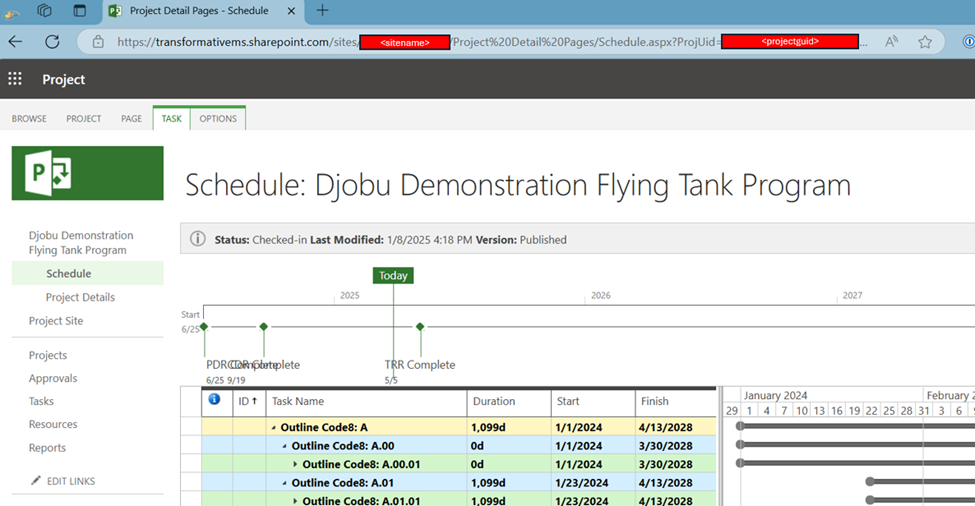
The full URL on that page will resemble this structure:
https://{yourtenant}.sharepoint.com/sites/{sitename}/Project%20Detail%20Pages/Schedule.aspx?ProjUid={projectguid}&ret=0
Make a note of your specific values for {yourtenant}, {sitename}, and {projectguid} as these will be critical for the next step.
Now, open a new tab in the same browser. To access the ProjectServer API, construct the following URL in a text editor using your specific values, then paste it into the browser’s address bar:
https://{yourtenant}.sharepoint.com/sites/{sitename}/_api/ProjectServer/Projects('{projectguid}')
If successful, you should see an XML data output, like this:
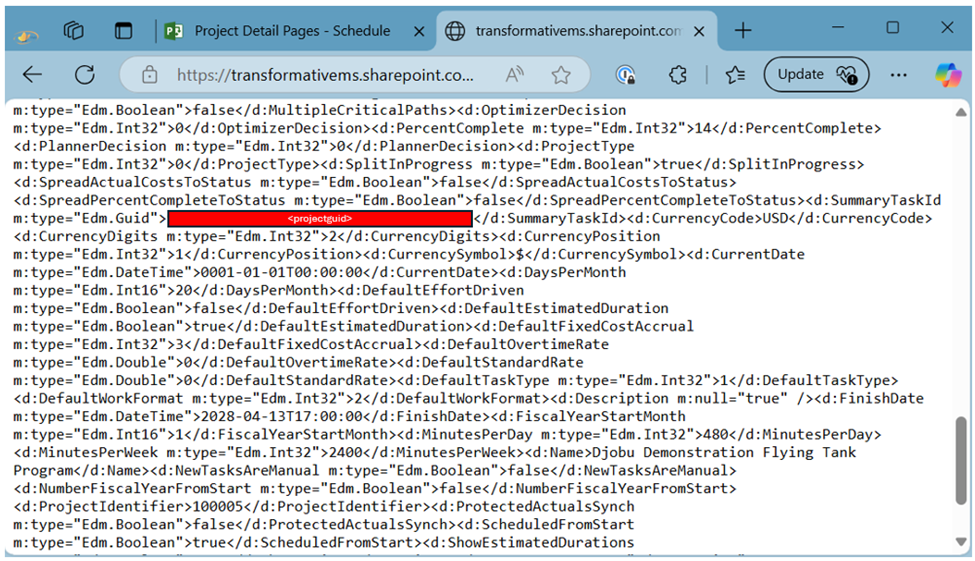
Congratulations! You’ve successfully accessed the ProjectServer REST API. Make sure to update your resume before moving on to the next section 😎.
Accessing the ProjectServer REST API in Power Query
Seeing the data in a browser is a good start, but for practical analysis, you’ll want to bring it into a tool like Power BI or Excel. This is where Power Query comes in.
Power Query is a data transformation and preparation tool integrated into Excel and Power BI, powered by the M query language. M allows you to write custom queries to connect to various data sources - including REST APIs like ProjectServer - and transform the data into a usable format. Its flexibility and built-in functions make it ideal for working with complex datasets.
Example Using Power Query
For this example, we’ll use the Power Query Advanced Editor. If you’re unfamiliar with creating a blank query, a quick web search or AI assistant can guide you to open the Advanced Editor in Power BI or Excel. Ensure you’re logged into Excel or Power BI with the same credentials used for Project Online, as this enables seamless authentication.
Here’s a practical setup in Power BI, where I’ve defined my PWA site URL and Project UID as reusable parameters:
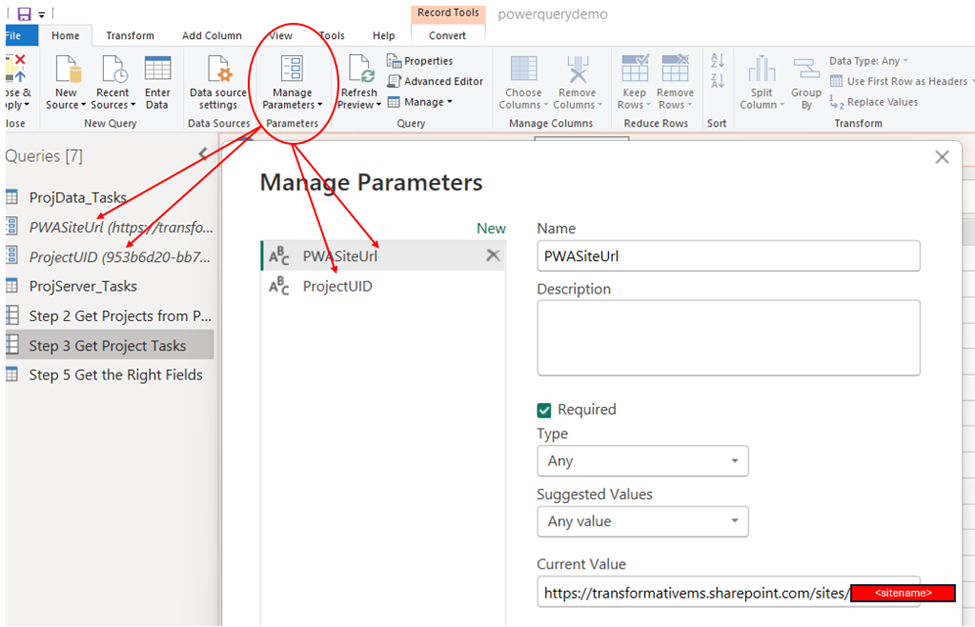
Using parameters is optional but recommended - it reduces manual edits and minimizes errors. Next, open the Advanced Editor and copy in the following M code:
let
    // This step includes several actions:
    //  1. Call the ProjectServer API for my project using the Web.Contents function
    //  2. Convert the native XML output to JSON using the Json.Document function
    //  3. Navigate to the parent record [d] to see the Project details
    Source = Json.Document(
        Web.Contents(
            PWASiteUrl & "/_api/ProjectServer",
            [
                RelativePath = "/Projects('" & ProjectUID &"')",
                Headers = [
                    #"Content-Type" = "application/json; charset=UTF-8",
                    #"Accept" = "application/json;odata=verbose"
                ]
            ]
        )
    )[d]
in
    Source
In the Advanced Editor window, it will look like this:
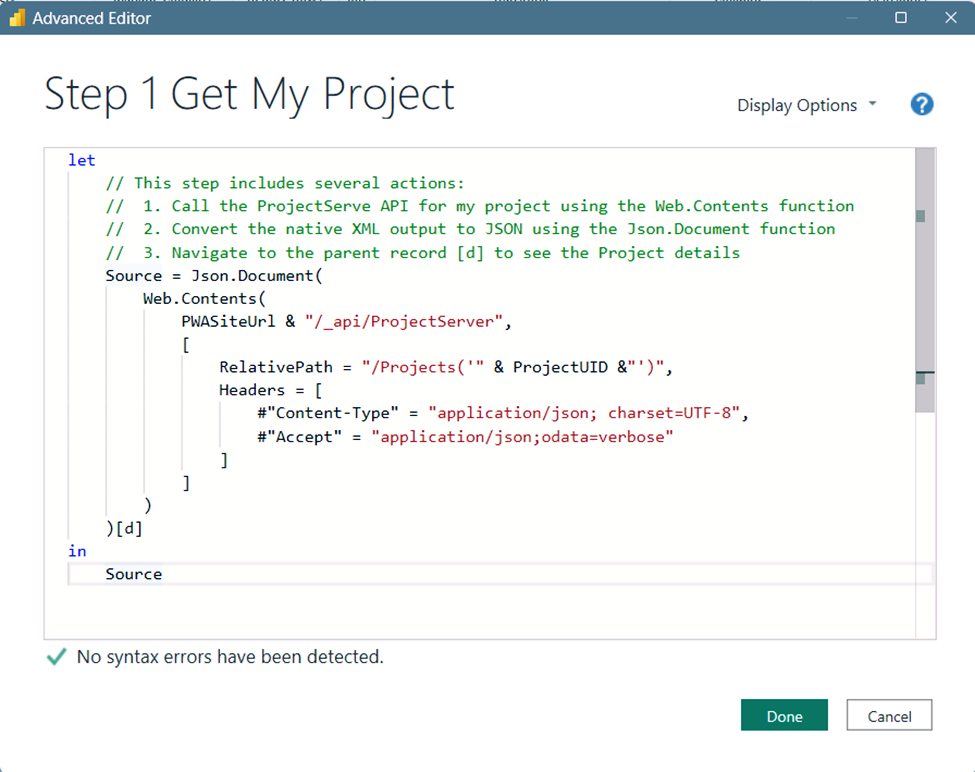
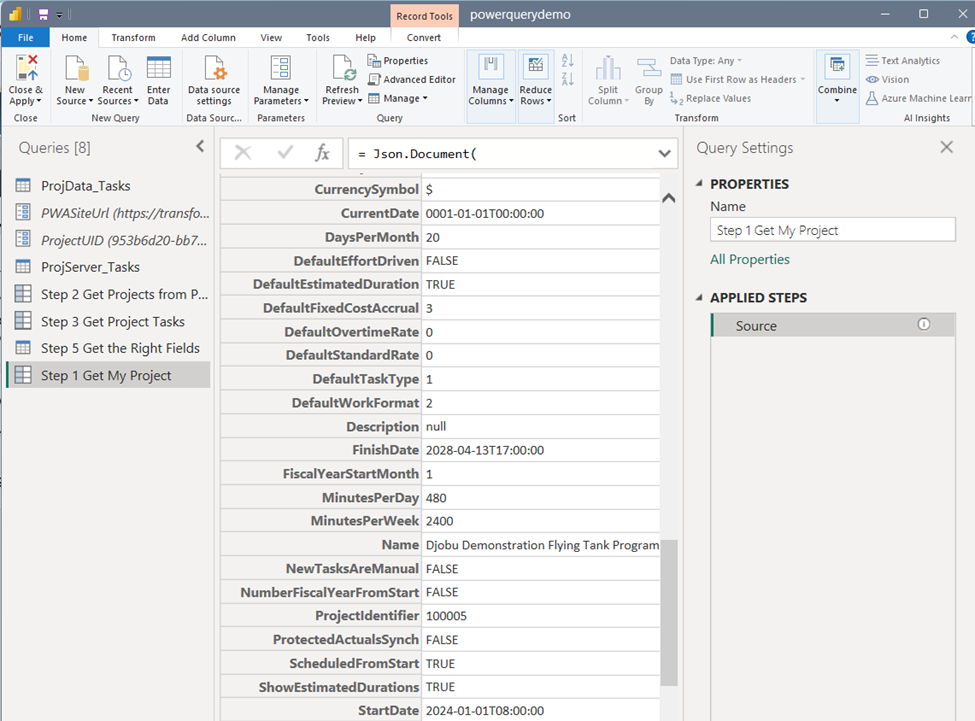
Click “Done” and wait as Power Query retrieves the data from your project. Notice that this query mirrors the URL you used in the browser, but Power Query handles the connection and data retrieval for you. It then transforms the raw JSON response into a readable table:
To save your work, click “Close & Apply” in the top left. For a deeper dive into M’s capabilities, refer to the full Power Query M function reference.
Summary
The ProjectServer REST API opens up a world of possibilities for accessing detailed project data in Project Online, far beyond what the ProjectData API offers. By using Power Query, you can seamlessly integrate this data into Excel or Power BI, transforming raw API responses into actionable insights with minimal effort. Stay tuned, as I will be adding more articles showing how to look at specific task data including local custom fields and lookup table entries.